
Quite some time ago now I wrote a series of posts about how I use Picasa to edit my photos. One of the things I didn’t really cover was how to make collages with multiple photos.
So here’s how:
1. Choose the pictures you want to use. They need to all be in the same album. If they aren’t already in the same album, right click each one and choose “Add to album” then “Starred Photos”. Then in your left side bar you will find a “Starred Photos” album with those pictures.
2. Click on one photo to select it. Then hold down the Command or Control key and click each of the others so they are all selected.
3. Click the “Collage” button at the bottom of the screen. EDIT: With the updated Picasa, you can now find the “Picture Collage” option in the “Create” menu at the top of the screen. You still need to do steps 1 & 2 first.
4. Choose which type of collage you want to create – there is a roll down menu to the left of the screen:
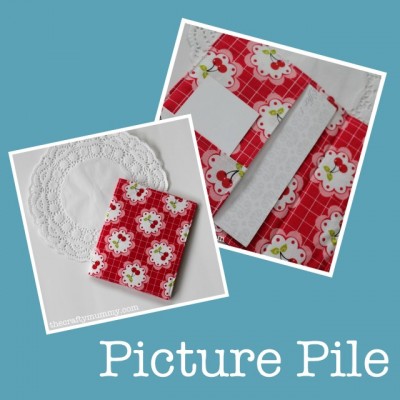
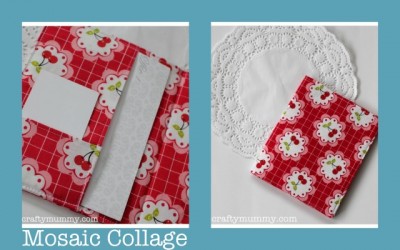
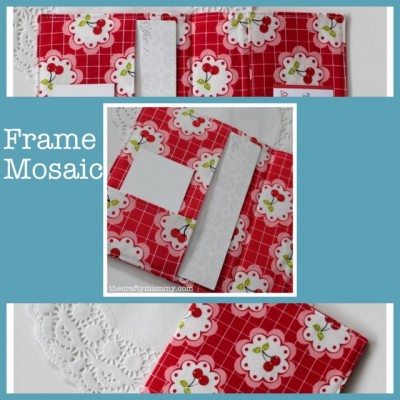
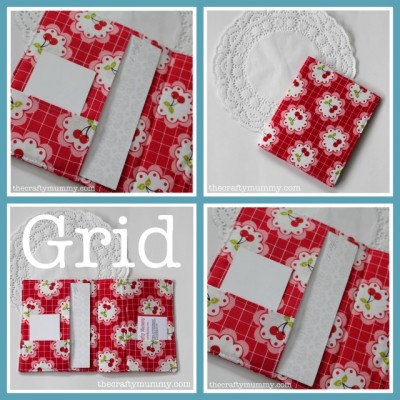


Some of these options work better with more photos, but I wanted to give you an idea of how thy look with the same two square photos. In some options the photos get cropped so it may be good to try each one to see how your collage will look.
5. Each collage type has slightly different options. You can adjust the grid spacing and the background colour. The Page Format will let you choose the size of your Collage, similar to the sizes when you crop a photo. In some cases you choose a picture for the background rather than just a colour.
6. Once you’re happy, click “Create Collage”.
7. I then rename my collage and export it to another folder. You can read how to do that in this post: Renaming and Exporting a Photo






Thanks for all your tutorials – must get onto picasa more now with picnik closing
This is great – I haven’t used picasa but I think we could become very good friends! I use a program called Snagit but you have to manually create the montage. (Thanks for linking up on my Saturday blogging post – I’ll be putting the linky up every Saturday if you’d like to add more on each week).
Thanks, Nikki. I haven’t heard of Snagit before, but I shouldn’t be surprised – There seem to be so many photo editing options out there!
Thank you! I wondered what I’d do now that Picnik is closing and you’ve come to the rescue!
I popped over from Nikki’s linky. x
So happy to help, Maxabella!
Such a great little tutorial! I always wondered how I could spruce up my photos for the blog 🙂 You’re a star Tonya!
You’re welcome, Kath.
Since you’ve dropped in, do you think I should send my latest crochet ripple blanket down to you there at Handmade Highstreet? Is it cold enough in Brisbane yet?