
With the changes to Facebook with Timeline for Pages, the photo albums have changed a little too. Here’s how you now move Facebook photos from one album to another:
1. Go to the Album with the photo you want to move. (Click the Photo tab, then click the album cover photo or title.)

2. Click on the “Edit Album” words in blue just above the photos.
EDIT: See update for Steps 1 & 2 below
3. Find the photo you want to move, then move your cursor over the top right corner. A little arrow should appear.
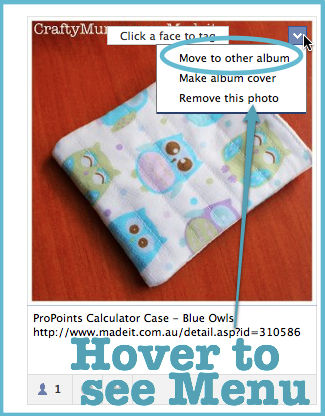
4. Click the arrow to show the menu options.
5. Choose “Move to other album”.

6. Select the Album you want to move your photo to from the roll down menu, then click “Move Photo”.
7. When you’re finished moving photos, click the blue “Done” button in the top right corner to close the Album.
How to Combine Two Photo Albums
I’ve been asked a few times about whether you can merge two photo albums into one. At this stage, it seems there is not an easy way. You can however, move all the photos from one album into another album one by one. You can then delete the empty album in the album edit screen – top right there is a delete album button next to the add photos button.

Update
Facebook has changed things a little. To edit your Albums, click Photos at the top of your Profile. Then click on the Albums tab. In this screen you can then click on the Album you want to move photos from. There is a new Edit button in the top right corner. Once you have clicked that you will be able to hover over the photo you want to move and see the arrow I talked about above in Step 3.








Ok, that answers the other question I was going to post! Thanks Tonya – knower of all things technical and crafty!
You’re welcome!
I CAN DO THAT BUT WHEN I WANT TO CHOSE AN ALBUM TO PUT MY PHOTO IN IT DOESN’T SHOW UP.
Hi Dolores, if you hover your mouse over the top right corner of the photo you want to move, you should get a drop down arrow. Choose move to other album and then you will get a menu to choose from your other albums. I hope this helps. Tonya
I will confess my pics aren’t even in albums! Maybe I need to create some to tidy everything up. 🙂
Thanks for linking today. #teamIBOT
My albums are a bit of mess but I know lots of crafty girls on Facebook use their albums to share their products so it seemed a useful tip to share
Thanks
Thank you!! I have spent much time trying to figure this out so this was a lifesaver!!
You’re welcome! Always happy to share how to do stuff.
Great tip to share … I actually need to go in and look at the state of my albums!
Thanks for the help. But I am trying to combine two albums thus having the need to move more than 70 photos. Doing it one by one would be too time consuming. Is there any way of moving a batch of photos at the same time?
At this stage, I don’t think there is, Gwen. The only way I can find is to move them one by one. How frustrating for you!
Yes indeed!! @.@
Appazemment, on ne peut pas déplacer les photos de couverture? 🙁 pourquoi?
This question in English: We can’t move the cover photos? Why?
Claudine, I think it should work for the cover photo. Perhaps try to change the cover to a different photo first. Then move the original photo.
I hope this works for you!
Just perfectly written for a novice like me to follow, thank you soo much hunni x
You’re welcome, Vicki!
Evening
Do you know why i get both “Remove this photo” and “Make album cover”, but not “Move to other album”?
It’s driving me mad.
The photos were mobile uploads, which i want o add to an existing album.
Thank you
Richard
Hi Richard,
I just had a look at my albums on my page. To get that option on the photos, I have to go to Photos, then click on Albums, then click on the Album I want to move the photos out of, then Click “Edit” at the top of the album, then if I click the drop down arrow when I hover at the top right corner of a photo, the option is finally there. Gee, that’s a lot of steps!!
Hope it helps you though.
Plus I was thinking about mobile uploads… when I ad a picture to my FB page from my iPhone, I can choose which album I want it to go into. When I add to my personal profile from my phone, the pics go to a folder called mobile uploads. But I can go through the steps above to then move them to another album.
have a great day,
Tonya
What if the ablum (iSO Photos) you have made isn’t showing up at all (on the computer) so you can move them to that folder. or there’s no add button in the folder you are trying to move the pictures too?
@Tonya – I’m also having that same problem. Wanting to add some pictures to my iSO pictures folder. But only puts them in Moblie Photos folder.
Hi Johnathan,
I think you only get the option to pick the folder a photo goes into if you are loading it to a FB page, not your personal profile. Could that be the problem?
How to move them if the album I want is not showing up in the drop down menu?
I think there are some albums hat you cannot move photos into, like your Profile album and Timeline album. Could that be why the option you want is not there? Try searching in the FB Help guides, but I wonder whether you can only move photos into album you have created yourself…
Thank you, thank you, thank you. My photos on Facebook have been bothering me for a couple of months but I could never find the 10 minutes to mess around and figure it out. Thank you for saving me the frustration and now my pictures are all nicely organized. Good way to start a new year.
You are so welcome! So easy when you know how!
There is a further issue with album editing. Facebook allows batch uploads, but if you want to move any photos in that batch to another album, the option does not appear in the drop-down menu and it seems it is not possible. If anyone has a solution, I would love to know.
Hi! Thank you for the post!
However, I am finding that going through my mobile uploads, I’ll be able to move some, but not others. The only options it gives me on a lot of the pictures is “Make Album Cover” or “Delete Photo”. Do you know why that is, or how to get around that? Thanks!
I’m not sure, Lydia, but with mine they will have less options in the main “album” screen than when I click on Edit and go into the screen to edit the album. Could you still be in the first Mobile Uploads Album screen sometimes? Not sure hat else to suggest… anyone got an idea?
I did a bit more reasearch, and figured out why I am unable to move them.
Via Facebook Help:
“This option is only available for albums you have created. All of your photos can be moved except for photos uploaded in a multi-photo upload or the album cover photo.”
So really, the only way to move them is by uploading them again, one by one, into the albums you want them in.
I’m glad you found an answer but I’m sure it wasn’t the one you were hoping for, Lydia! Hope it doesn’t take you forever to get them all into the albums you want them in!
This was SO helpful – I would’ve just given up. Thank you!
hi mummy
4234324 guides at google but all of them are no longer rellevant…. with your post i finally did it!
thanks a bunch!!
yafit
So happy to help!
I KNOW HOW TO DO MY PHOTOS BUT I FORGOT HOW YOU GET DIFFERENT NAME ALBUM TO CHOOSE WHERE I WANT TO MOVE MY PHOTOS TO.
I think now its not working , facebook changed there layout again
Thanks for pointing that out, Vishnu. I have added a update section to this post today which will explain how to find your Albums now and edit them. Hope this is helpful!
I have two pages on facebook, my fan page and my personal page. I taged my personal self in the two photos that I uploaded on my fan page Timeline , and the photos appear on my personal timeline as an Timeline album, but I want each photo to be separate post on my personal timeline, with large images and comments
I could be wrong but I think when you put multiple photos up within a short time frame, they will automatically appear as an album.
Thank you for your reply. I realized that, but is there something I could do at this point to make them show individually on my timeline?
I don’t know of a way to make them show individually, Ana. Sorry – wish I could help!
Hi, I was wondering if when you transfer photos from one album to another the comments and tags associated with that particular photos also get transferred. Or do they get uploaded as brand new photos?
Thanks in advance for your help!
Nina
Hi Nina,
I would think they’d get transferred to the new album too but I will have to test it…
I moved many of my photos from my Mobile Uploads album to individual albums they corresponded with, and now when I view my timeline, the comments and captions from my original post appear on my timeline, but the photos are now all gone. And apparently, there’s no way to move photos back TO the Mobile Uploads album to correct it. Any advice? Facebook is maddening!
I have the same question as Suzanne! I’ve been uploading and organizing for HOURS and now my beautiful time line is RUINED! 😛 Please help!